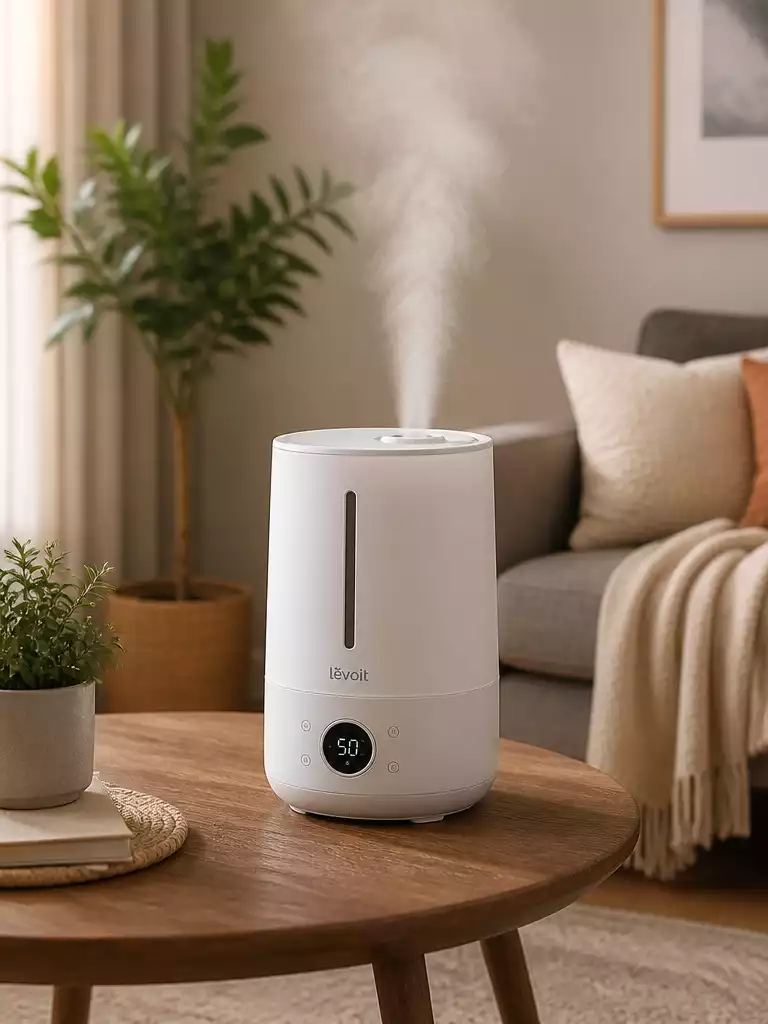
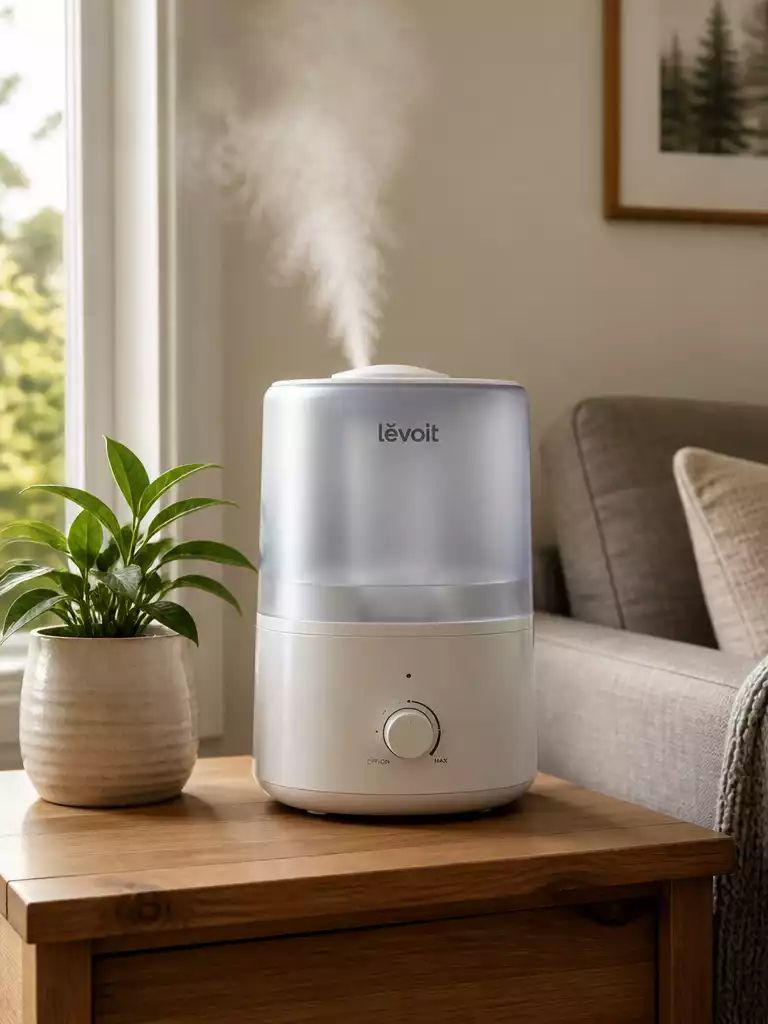
What if you could control the comfort of your home with a simple tap on your smartphone? Connecting your Levoit humidifier to WiFi not only adds convenience but also optimizes your indoor environment. Discover how you can enhance your living space with smart technology.
What You Will Learn
- How to set up the VeSync app for controlling your Levoit humidifier remotely.
- Essential preparation steps to ensure a smooth WiFi connection.
- Benefits of integrating your humidifier into a smart home system for added convenience.
- Common troubleshooting tips for resolving WiFi connectivity issues.
Essential Steps for Connecting Your Levoit Humidifier to WiFi
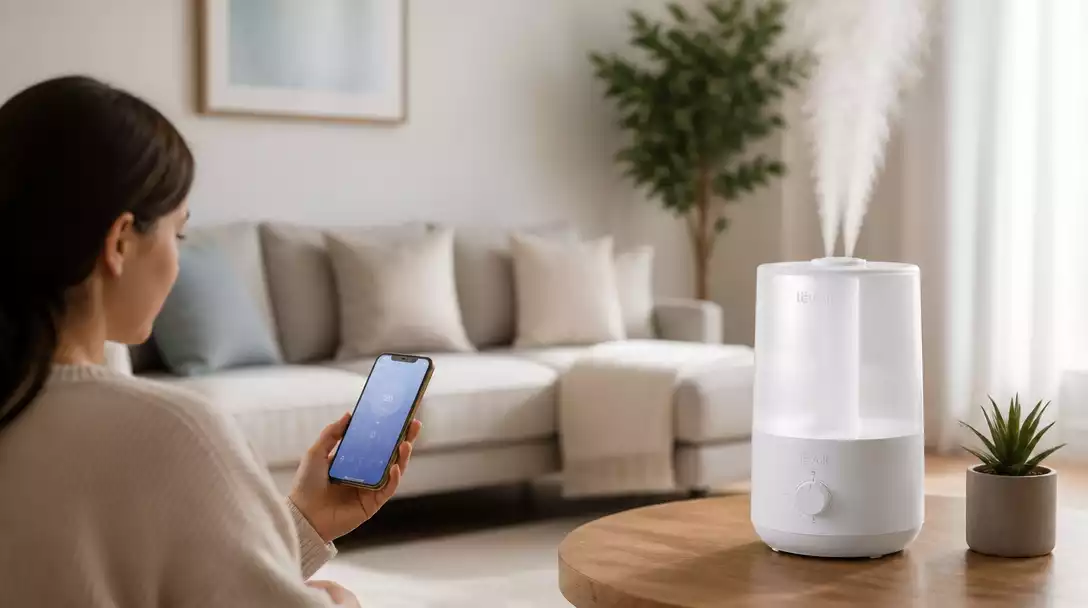
Connecting your Levoit humidifier to WiFi is a straightforward process that unlocks a world of conveniences. With smart technology at your fingertips, you can control your humidifier from anywhere, ensuring optimal indoor air quality. In this section, we’ll walk you through the essential steps to get started, focusing on the importance of the VeSync app and the initial setup of your humidifier.
VeSync App and Its Importance
The VeSync app plays a crucial role in managing your Levoit humidifier. Not only does it allow you to control settings remotely, but it also helps track humidity levels and customize your experience. This app is compatible with various Levoit models, making it a go-to tool for maximizing efficiency and comfort.
- Remote control of settings
- Real-time tracking of humidity levels
- Customizable schedules for operation
By utilizing the VeSync app, you can easily adjust your humidifier’s settings to suit your personal preferences. This level of control ensures that your home environment remains comfortable, regardless of external weather conditions. If you’re encountering issues with the device itself, learning why your Levoit humidifier might not be working can be a helpful resource.
Preparing Your Humidifier for WiFi Connection
Before we dive into the connection process, it’s essential to prepare your humidifier properly. Start by ensuring that your humidifier is plugged in and powered on. This simple step is often overlooked but is crucial for establishing a successful WiFi connection.
- Check that the humidifier is on a stable surface
- Make sure it has enough water
- Verify that your home WiFi is functioning
Once your humidifier is powered on and ready, you can move forward with the connection process. A little preparation now will save you time and frustration later, ensuring a smooth setup experience.
Benefits of Smart Home Integration with Levoit Humidifiers
Integrating your Levoit humidifier into your smart home system truly enhances usability and convenience. Imagine walking into a perfectly humidified room without having to adjust a single setting! This smart technology not only simplifies your routine but also optimizes energy usage.
- Control via voice commands with Alexa or Google Assistant
- Schedule operations for when you’re home or away
- Monitor air quality for health and comfort
These features not only improve your daily life but also contribute to a healthier living environment. With the ability to control your humidifier remotely, you can ensure your home is always welcoming, regardless of the season. To understand the broader advantages, exploring the general benefits of a humidifier can provide more context.
Pro Tip
Did you know? Regularly updating the VeSync app can enhance the performance of your Levoit humidifier. Ensure you have the latest version to access new features, improved connectivity, and troubleshooting support that can make your experience even smoother!
Summary of Connection Process and Troubleshooting Tips
To connect your Levoit humidifier to WiFi, begin by downloading the VeSync app from your device’s app store. Make sure to create an account and follow the prompts to prepare your humidifier for connection. Key steps include ensuring the humidifier is powered on and connected to a 2.4 GHz WiFi network. If you encounter issues, don’t worry! Troubleshooting can help resolve many common problems.
- Download the VeSync app from the App Store or Google Play.
- Create your VeSync account to access humidifier features.
- Ensure your humidifier is on and connected to the correct WiFi network.
- Follow the in-app instructions to complete the connection.
By following these steps, you can enjoy the full benefits of your smart humidifier. If trouble arises, such as disconnection or failure to connect, refer to the troubleshooting section for possible solutions!
Frequently Asked Questions About Levoit Humidifier WiFi Connection
Why Won’t My Humidifier Connect to WiFi?
If your humidifier isn’t connecting, several factors could be at play. Here are some common reasons and solutions:
- Bluetooth Proximity: Make sure your smartphone is close to the humidifier during the pairing process.
- Network Settings: Ensure your WiFi is set to 2.4 GHz, as the humidifier does not support 5 GHz networks.
- App Permissions: Check if the VeSync app has the necessary permissions to access your WiFi.
By addressing these issues, you can often resolve connection problems quickly! If issues persist, feel free to consult the user manual or customer support.
How Do I Reconnect My Levoit Humidifier to the VeSync App?
Reconnecting your humidifier is straightforward! Simply follow these steps:
- Open the VeSync app on your device.
- Navigate to the devices section and find your humidifier.
- Tap the reconnect option, and follow the prompts to pair again.
If you ever need to reset the humidifier due to disconnection, don’t hesitate to reach out for specific instructions!
How can I troubleshoot if my Levoit humidifier won’t turn on?
If your Levoit humidifier won’t turn on, first check if it’s properly plugged into a functional power outlet. Ensure the water tank is correctly seated and filled, as many humidifiers have safety features preventing operation with an empty or improperly installed tank. You might also try resetting your Levoit humidifier as a simple solution for power issues.
How do I know if my Levoit humidifier is compatible with WiFi?
Most Levoit humidifiers designed for smart home integration will explicitly state “WiFi” or “Smart” in their product name or description. You can also check the product specifications on Levoit’s official website or the humidifier’s user manual. Look for mentions of the VeSync app, which is Levoit’s dedicated platform for smart device control.
Can I control my Levoit humidifier with voice commands?
Yes, many WiFi-enabled Levoit humidifiers are compatible with popular voice assistants like Amazon Alexa and Google Assistant. Once connected to the VeSync app and integrated with your smart home system, you can use voice commands to turn the humidifier on/off, adjust mist levels, and set schedules, providing hands-free convenience.
Further Resources for Levoit Humidifier Users
For additional support, I recommend checking out these resources:
These resources can provide further guidance and enhance your experience with your Levoit humidifier!
Importance of Regular Maintenance and Filter Replacement
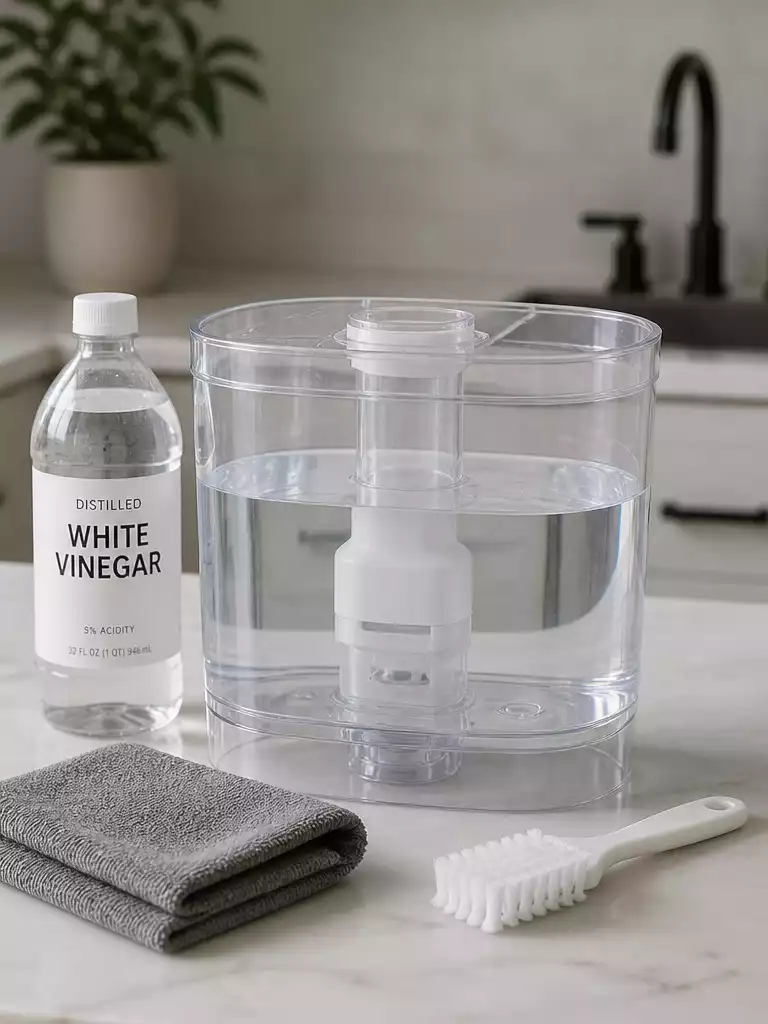
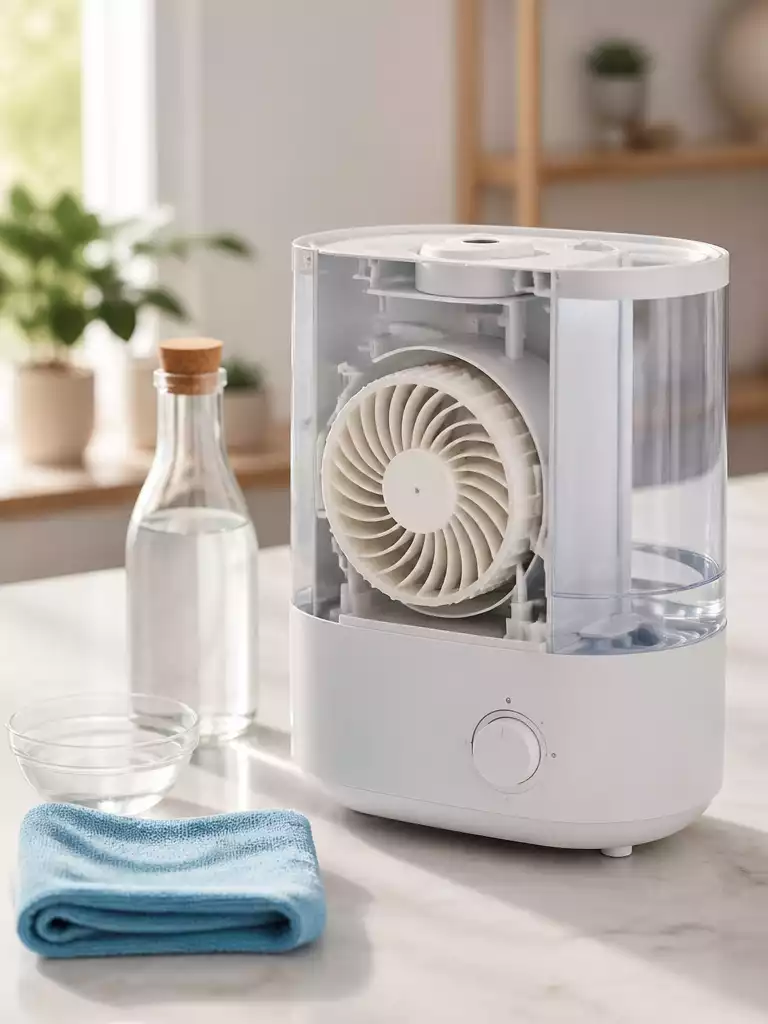
To keep your humidifier performing at its best, regular maintenance is key. I suggest the following:
- Check and replace filters according to the manufacturer’s recommendations.
- Clean the tank and other components weekly to prevent mold and bacteria buildup.
- Inspect the humidifier for any signs of wear or damage regularly.
By adhering to a maintenance schedule, you can ensure a healthier environment and prolong the life of your humidifier!
Exploring Health Benefits of Using a Levoit Humidifier
Maintaining optimal humidity levels in your home can yield several health benefits, such as:
- Improved sleep quality due to better air moisture.
- Reduction in seasonal allergies by alleviating dryness in the air.
- Enhanced overall well-being with more comfortable indoor conditions.
Investing in a Levoit humidifier can significantly improve your quality of life, especially during dry seasons!
Encouragement to Reach Out for More Help
If you have any questions or need further clarification, feel free to reach out! I’m here to help and would love to hear from you. Leave your comments or inquiries below, and let’s make sure you get the most out of your Levoit humidifier!
Recap of Key Points
Here is a quick recap of the important points discussed in the article:
- Download the VeSync app to control your Levoit humidifier remotely.
- Ensure your humidifier is powered on and connected to a 2.4 GHz WiFi network before starting the setup.
- Utilize the app for tracking humidity levels and creating customizable schedules.
- Address common connection issues such as Bluetooth proximity and network settings for optimal performance.
- Regularly maintain your humidifier by checking filters and cleaning components to ensure longevity and efficiency.
- Enjoy the health benefits of improved air quality and comfort by maintaining optimal humidity levels in your home.